
Support Portal
Login for Support
General Questions
How can I contact Collaborative Development?
Use the Contact form: here.
WordPress Questions
What's the difference between Update and Publish?
Update and Publish are both used to save a page or post to the database.
Publish (the default) will make a page or post appear on the front of the website.
Update will save changes to a previously “published” page or post.
Where's the Update button?
You MAY have to scroll to see the update button, it will be on the right-hand side (on a desktop).
Alternatively, we may have added a plugin which gives us access to the update function on the toolbar at the top of the backend. (It’s always there (or Publish) and saves some scrolling!)
Can I use my portable device?
You can use a bunch of devices to create (or edit) a page or post.
There ALWAYS a browser. In addition to a desktop, you can use a browser on a tablet or a smart phone to work on your website.
WordPress app. There are apps available from WordPress directly, we’ll let you find them on the appropriate App store depending on your device.
WMS Sales Questions
How do I see the Return Authorization requests?
- Log into the back end of the website
- Select Forms/Entries on the left side menu (We’ll be looking at the RA form data). Alternatively, you can get there directly via this link.
NUMC Questions
What's my NUMC website login ID & password?
- User ID: nluckman
- Password: NUMC19pswd#
Backend of NUMC website: https://www.newfanemethodist.org/wp-admin/
How do I update the church calendar?
- The calendar is being hosted on Google Calendar. (You’ll need to be set up as an administrator to edit it.)
- Add or update calendar entries as appropriate, making sure the event is on the Newfane United Methodist Church calendar. (It should be colored red.)
- It may take up to15 minutes or so for Google to “publish” the event, so that the website can see it.
How do I add (or update) a post for the front page?
We’re using WordPress “Posts” for the Front page date specific announcements. Posts can have “categories” assigned to them. We’re using a category called “Front Page” to denote that the post is to show up on the Home Page. The 3 most recent posts (the number is controllable) will show up.
To edit or add a post:
- Log into the back end of the website
- Select “Posts”/”All Posts” on the left side menu.
- I like to start with a pre-existing one, so that the settings are copied when we start, so in theis case you can edit and then copy or if you mouse over a previously existing “Front Page”, a small pop-up window appears that lets you “Clone” an existing entry. (Click Clone)
- After your copy has been created, click edit to open up the clone. Then, change the Title, the “permalink” (what shows up on the URL for the post), click the gears on the image and text to edit and change the appropriate information. Finally, click “Publish” to make the post available to the front of the website.
How do I add (or update) a newsletter?
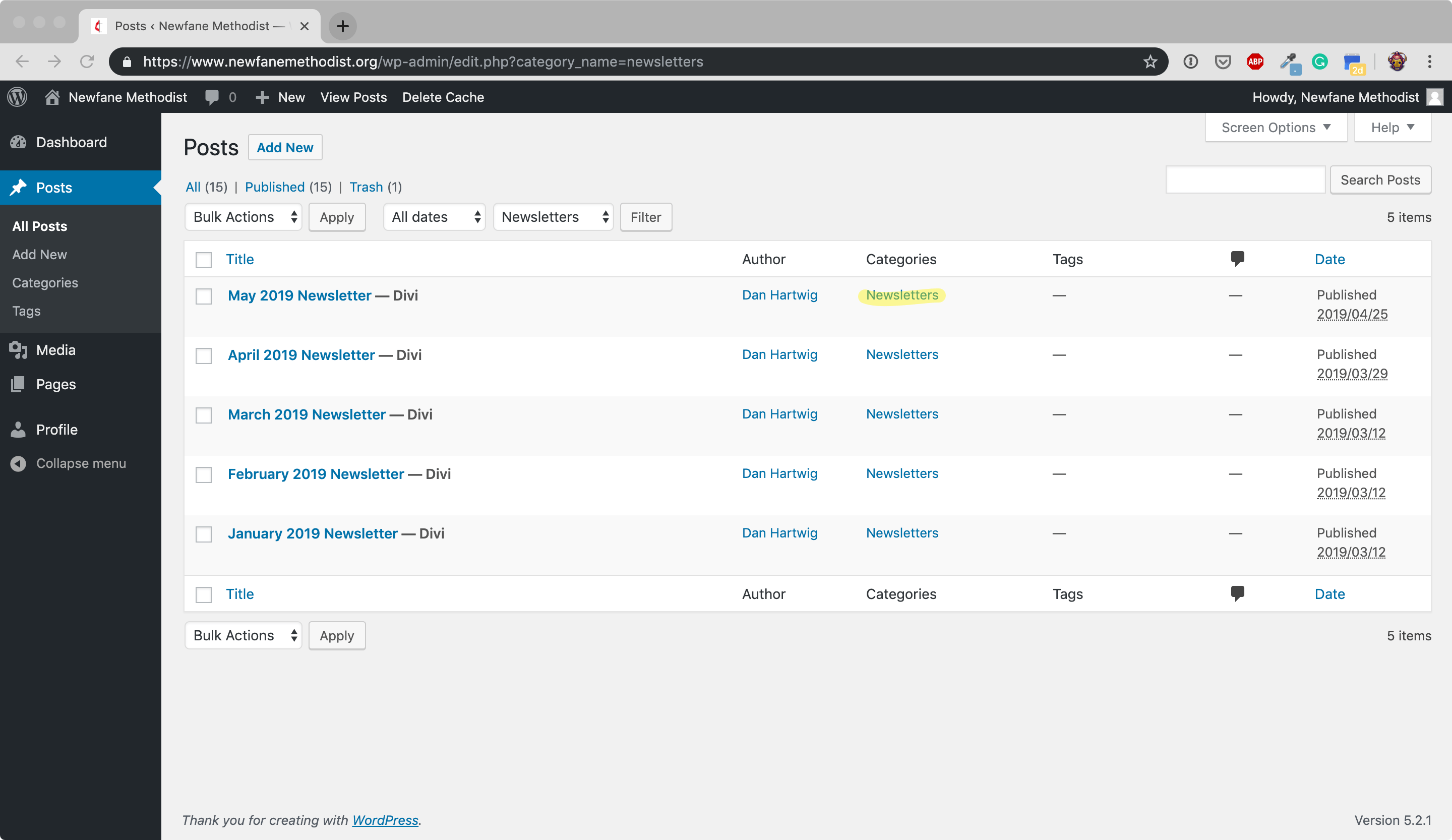
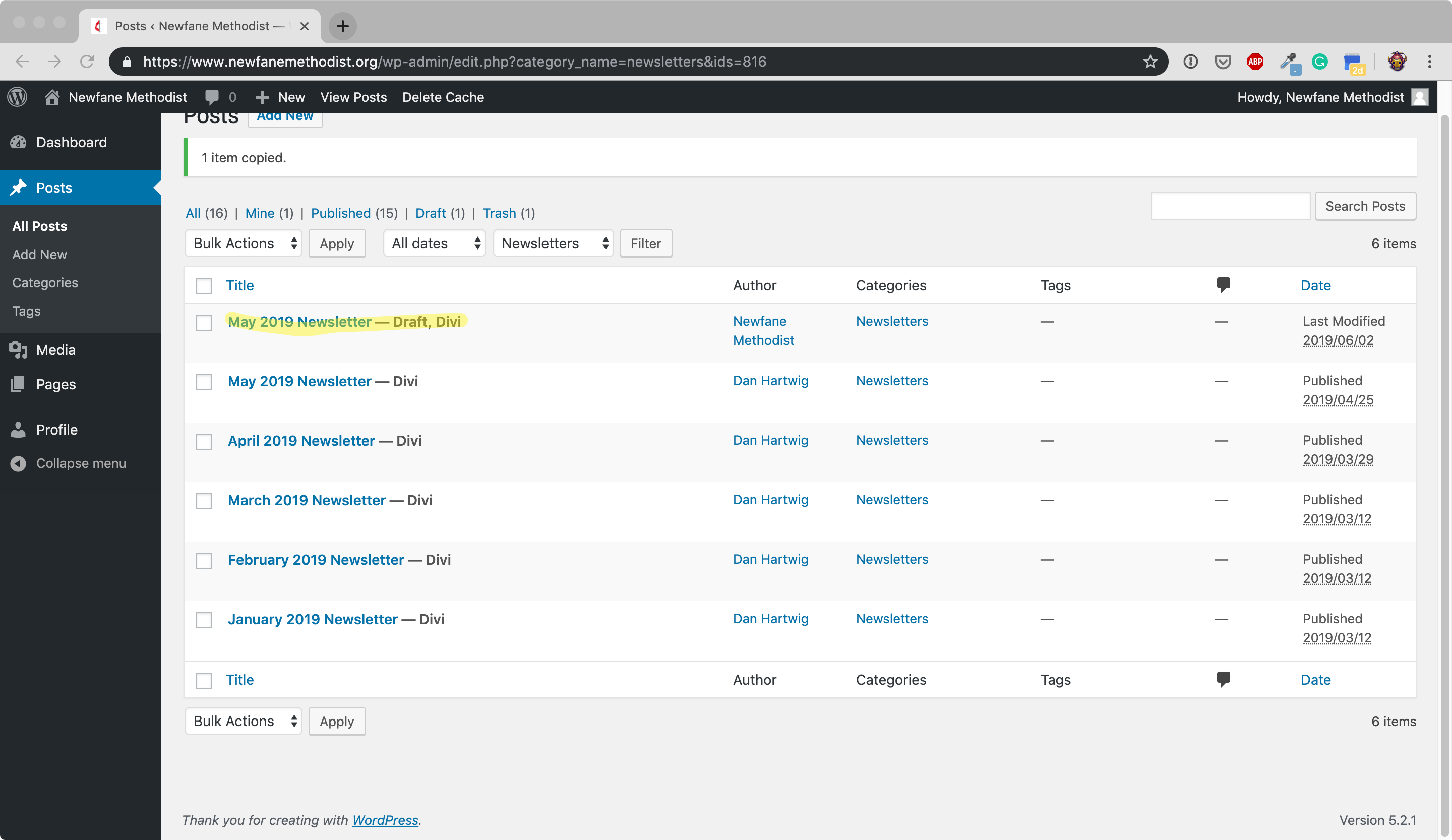
Mouse over one of the existing Newsletters and click on Clone. It will create a copy (as a Draft):
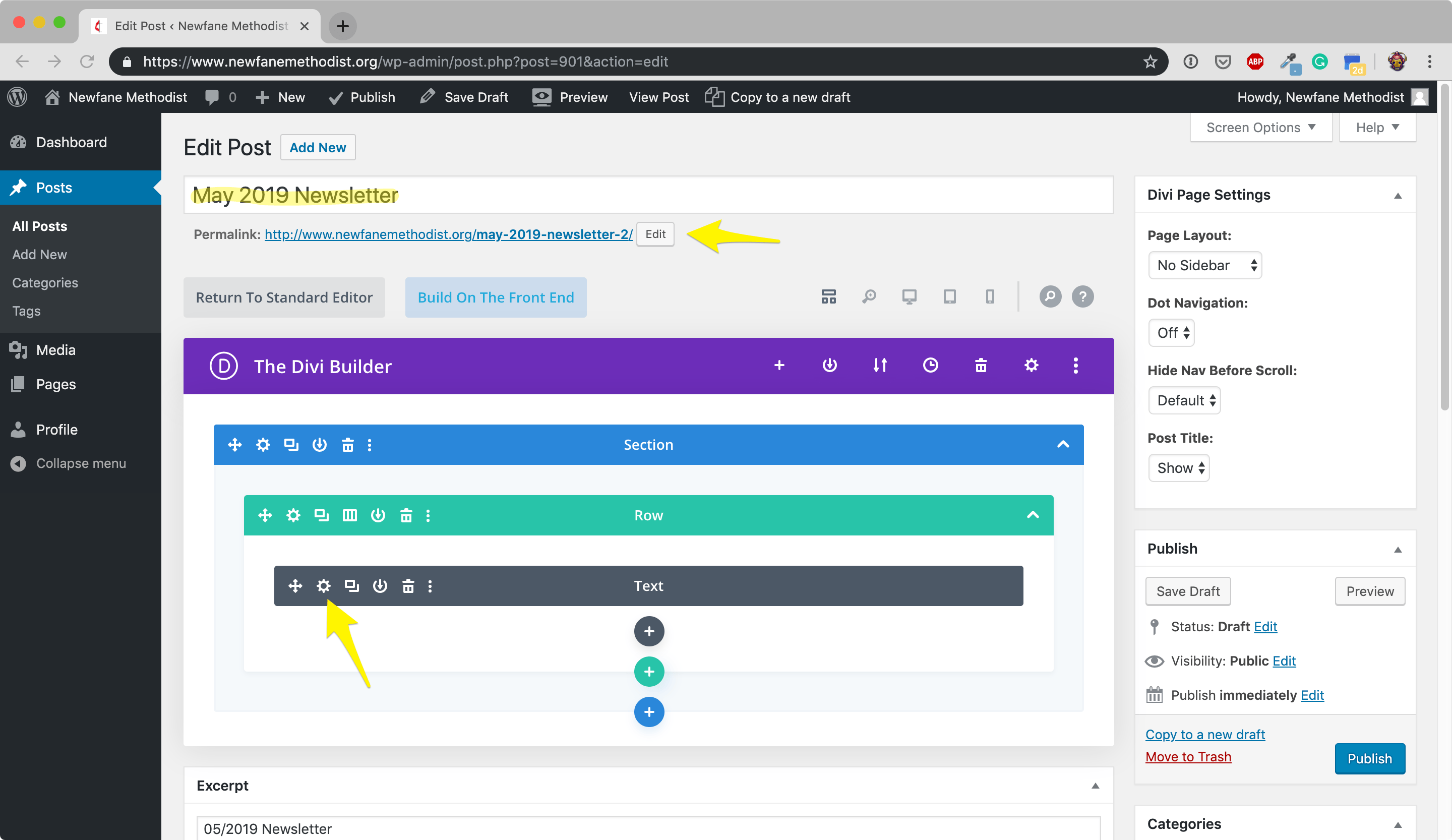
Click Edit (or the title of the post) to enter the editable area of the post. Change the Title (highlighted), edit the permalink (highlighted Edit button), and click the edit icon (highlighted gear icon):
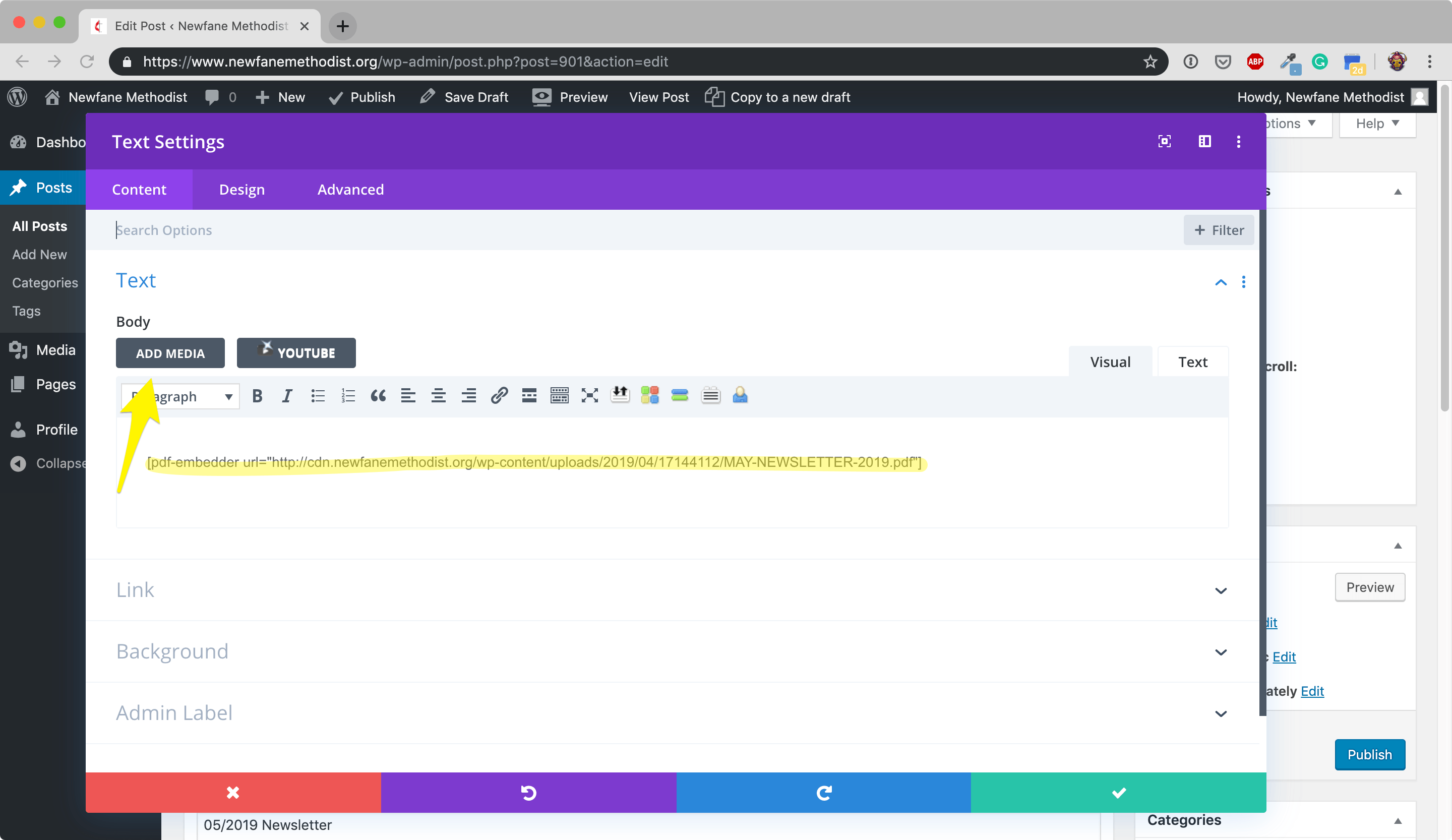
When the post edit window appears, use the Add Media button (highlighted arrow) to upload a new PDF file. Note: we will be evenutally grabbing a URL to put in the pdf-embedder shortcode (highlighted area):
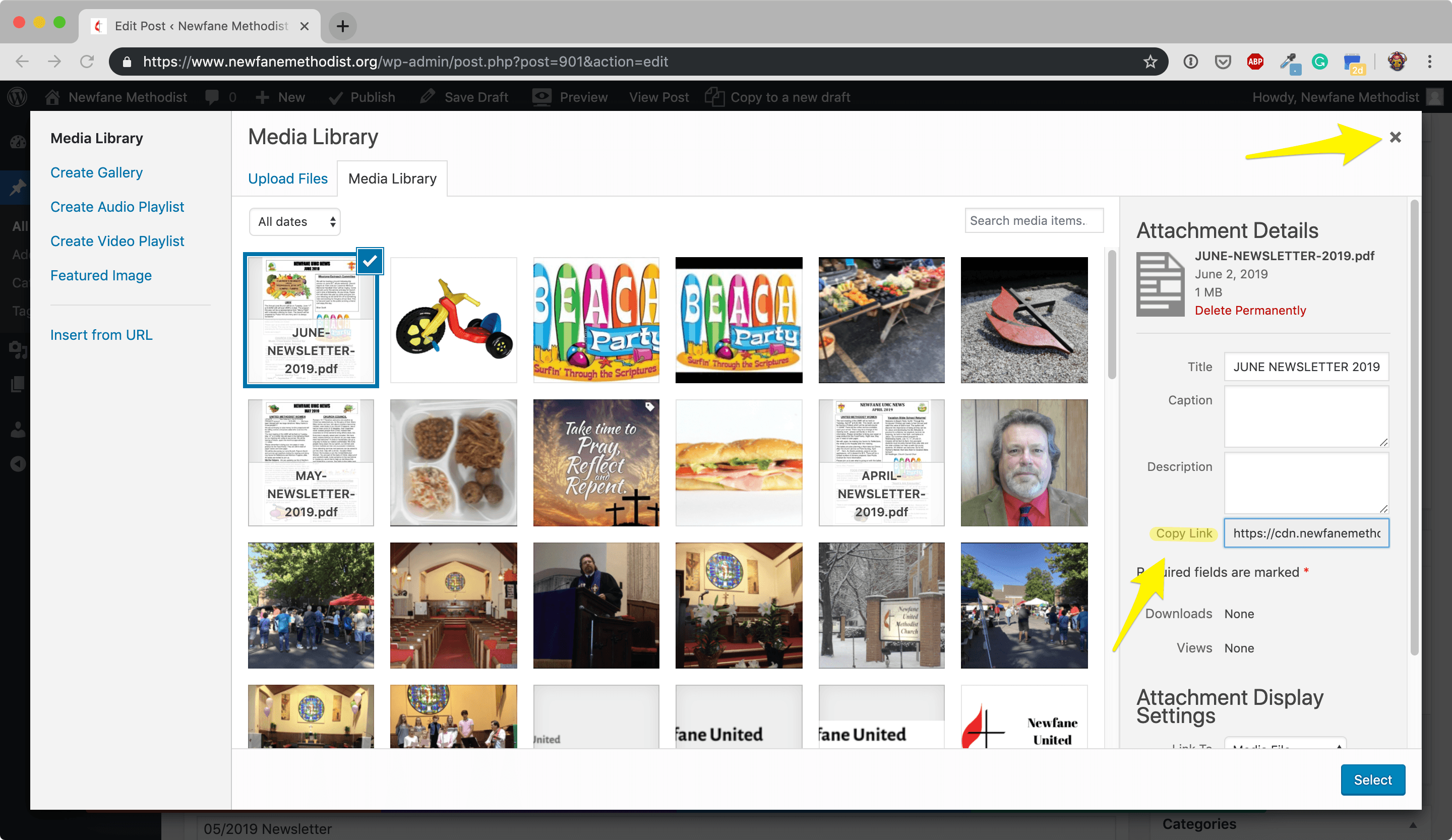
After the PDF has been uploaded, it is displayed (along with all of the other media files, in the Media Library. The new pdf will be first. Click Copy Link (highlighted) to copy the address of the uploaded pdf file and “CLOSE” the window. (Select will insert a link, but we don’t want to use that:
You will be taken back to the Text Settings window. Replace the URL of the previous PDF with the new one and click the green checkmark at the bottom to update and close the window.
You will then be taken back to the previous window, the Edit Post window. Click Publish to publish the Post. It should now appear on the newsletters page on the front of the website.
Milly’s Pantry Questions
How do I update the church calendar?
- The calendar is being hosted on Google Calendar. (You’ll need to be set up as an administrator to edit it.)
- Add or update calendar entries as appropriate, making sure the event is on the Newfane United Methodist Church calendar. (It should be colored red.)
- It may take up to15 minutes or so for Google to “publish” the event, so that the website can see it.
How do I add (or update) a post for the front page?
We’re using WordPress “Posts” for the Front page date specific announcements. Posts can have “categories” assigned to them. We’re using a category called “Front Page” to denote that the post is to show up on the Home Page. The 3 most recent posts (the number is controllable) will show up.
To edit or add a post:
- Log into the back end of the website
- Select “Posts”/”All Posts” on the left side menu.
- I like to start with a pre-existing one, so that the settings are copied when we start, so in theis case you can edit and then copy or if you mouse over a previously existing “Front Page”, a small pop-up window appears that lets you “Clone” an existing entry. (Click Clone)
- After your copy has been created, click edit to open up the clone. Then, change the Title, the “permalink” (what shows up on the URL for the post), click the gears on the image and text to edit and change the appropriate information. Finally, click “Publish” to make the post available to the front of the website.
How do I add (or update) a newsletter?
Mouse over one of the existing Newsletters and click on Clone. It will create a copy (as a Draft):
Click Edit (or the title of the post) to enter the editable area of the post. Change the Title (highlighted), edit the permalink (highlighted Edit button), and click the edit icon (highlighted gear icon):
When the post edit window appears, use the Add Media button (highlighted arrow) to upload a new PDF file. Note: we will be evenutally grabbing a URL to put in the pdf-embedder shortcode (highlighted area):
After the PDF has been uploaded, it is displayed (along with all of the other media files, in the Media Library. The new pdf will be first. Click Copy Link (highlighted) to copy the address of the uploaded pdf file and “CLOSE” the window. (Select will insert a link, but we don’t want to use that:
You will be taken back to the Text Settings window. Replace the URL of the previous PDF with the new one and click the green checkmark at the bottom to update and close the window.
You will then be taken back to the previous window, the Edit Post window. Click Publish to publish the Post. It should now appear on the newsletters page on the front of the website.